

Customers screen
What it is for
Section titled “What it is for”The Customers screen lists every individual and company the instance knows about, whether or not they have been through an onboarding process. It is where you check that a record exists and where a record is removed.
The difference from the Onboarding screen is what each one lists: there they are processes, and one person may have several; here they are people and companies, each appearing once.
Access belongs to the Administrator, Supervisor and Analyst profiles. The Actions column, which holds the journey creation and the record removal, is shown only to Administrator and Supervisor; the Analyst opens the screen read-only. The other profiles get the restricted access message.
Layout of the screen
Section titled “Layout of the screen”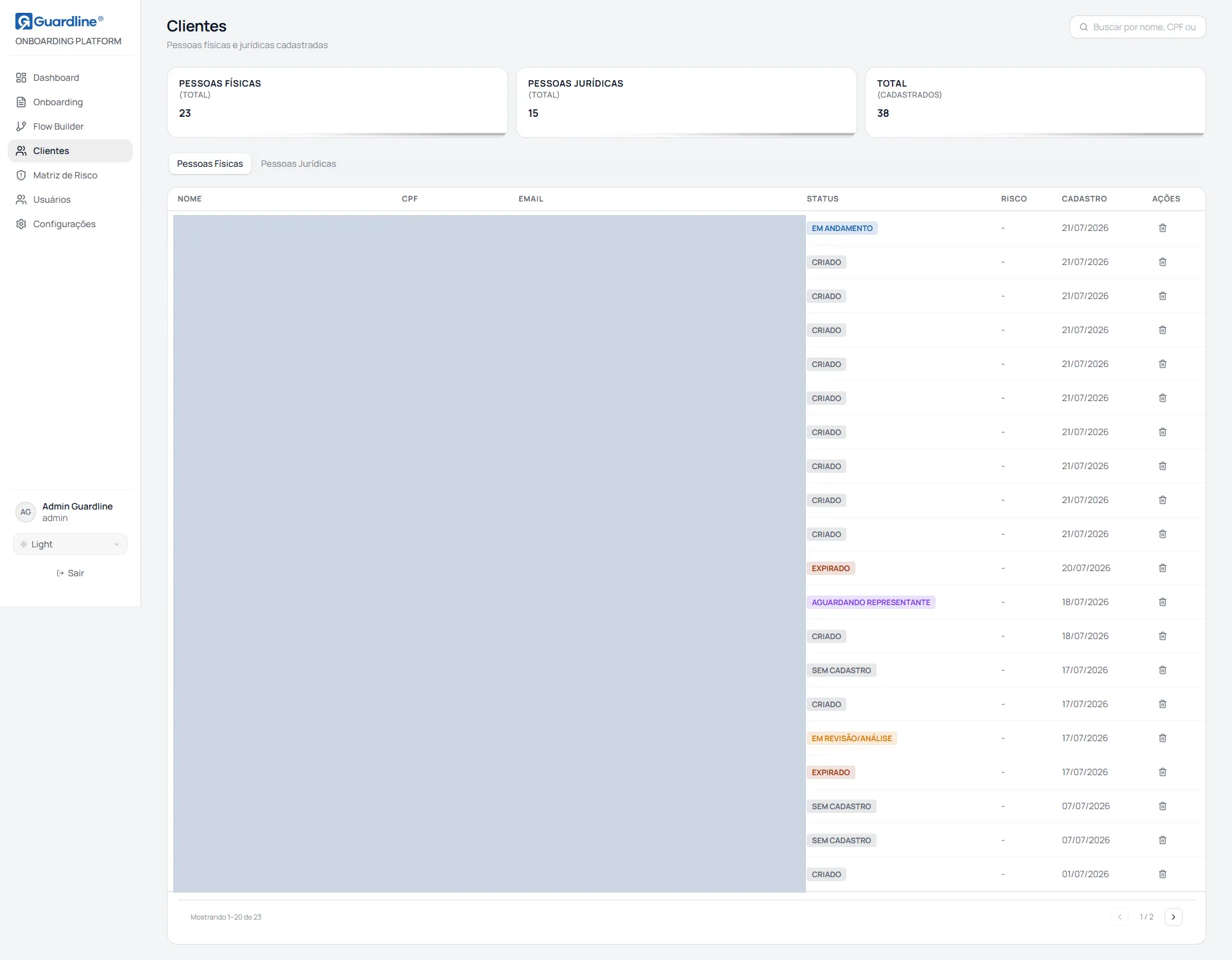
The header carries the title, the search field and three indicators: Individuals, Companies and Total. The indicators report the totals of the whole base and do not react to the search, staying unchanged while you filter.
Below, two tabs separate individuals from companies.
| Tab | Columns |
|---|---|
| Individuals | Name, Tax ID, Email, Status, Risk, Registered and Actions |
| Companies | Legal Name, Tax ID, Status, Risk, Registered and Actions |
Fields that are not filled in show a dash. The listing shows twenty records per page and does not allow sorting by column.
The Status column
Section titled “The Status column”The Status column does not describe the person’s record; it describes the last onboarding journey they went through.
| Content | Meaning |
|---|---|
| Approved, Rejected, In review, In progress and the rest | Status of that person’s most recent onboarding process |
| No onboarding | The person exists in the base but has never been through an onboarding process |
The “No onboarding” note is neither an error nor a block: it identifies someone on record who never started a journey.
Search
Section titled “Search”The search field accepts a name or a tax ID, and ignores punctuation in documents. It is a single field, shared by both tabs.
The search filters the records on the page being shown; it does not query the server. If the customer you are looking for is on another page, they will not be found from the current page. In that case, page through the list or search by tax ID on the Onboarding screen, whose search covers a larger volume of records.
Starting a journey from the record
Section titled “Starting a journey from the record”Every row of the table offers, in the Actions column, the Create journey for the customer button, or Create journey for the company on the companies tab. It opens the New journey window, which asks only which journey, because the row already names the subject.
The window lists the active journeys compatible with the record’s type. Pick one and click Create journey. The screen then shows the link and its expiry date, with the Open and Close buttons; send the link to the customer through whichever channel you prefer.
What sets this action apart from the Flow Builder’s New process is where the data comes from: here the journey is opened over the record that already exists, not over a typed document. What the customer already told us comes pre-filled, and the already-registered customer policy, on a flow that declares it, never refuses this door. It is the door the record refresh and the customer’s change of classification walk through.
If the customer already has a journey in flight on that flow, the window says the current one has to be finished or cancelled before another is opened. If there is no active journey compatible with the record’s type, the window says so instead of showing an empty list.
Removing a record
Section titled “Removing a record”Find the customer’s or the company’s row and click the removal icon in the Actions column. The row itself then offers Cancel and Confirm. While the call runs both buttons stay locked; at the end, the row is taken out of the list and the matching indicator drops.
The removal is logical: the record is marked inactive and stops appearing, but it is not erased, because the record has to be kept for far longer than the commercial relationship lasts. The screen offers no way back.
Two consequences are worth stating. The removal does not cancel that person’s journeys in flight: to end a journey, open the case and use Cancel journey. And it frees the document, because the uniqueness constraint only applies to active records: the same person can be registered again later, and two historical rows then coexist.
The removal does not ask for a justification, only for confirmation. Check the name on the row before confirming.
Screen states
Section titled “Screen states”| Situation | Message |
|---|---|
| No individual on record | No individual on record |
| No company on record | No company on record |
| Search with no result | No result for the search |
An unexpectedly empty list, when you know records exist, usually means a connection failure. Reload the page before concluding that the base is empty.
Common tasks
Section titled “Common tasks”Check whether a person is already in the base. Individuals tab, entering the tax ID. If they are not found, check the other pages or search on the Onboarding screen.
Find out the instance’s customer volume. The three indicators at the top, with Total being the sum of individuals and companies.
Identify who never started a journey. Look, in the Status column, for the records marked No onboarding.
Handle a data deletion request. Find the person, use the removal icon and confirm on the row itself. The deregistration is logical and does not cancel journeys in flight; if there is one, cancel it on the case.
Send a refresh journey to an existing customer. Find the person and use the Create journey for the customer button, picking the journey in the window. Do not re-register them by document: the flow may refuse someone whose registration already ended.
Frequently asked questions
Section titled “Frequently asked questions”I searched for an existing customer and they did not show up. The search only covers the page being shown. Page through the list or use the search on the Onboarding screen.
Why does the total stay the same during a search? The indicators report the total of the base, not the result of the search.
I removed a record by mistake. Can it be undone? Not from the screen. The record is marked inactive and leaves the list; since the document becomes free again, the way forward is to register the person once more. Their journeys were not cancelled by the removal.
I cannot open this screen. Access belongs to the Administrator, Supervisor and Analyst profiles. Ask the instance administrator.
I can open the screen but I see no Actions column. Creating a journey and removing a record belong to Administrator and Supervisor. The Analyst profile opens the screen read-only.
Version 18, updated on