

Onboarding screen
What it is for
Section titled “What it is for”The Onboarding screen is the central list of every verification process in the instance, both for individuals (KYC) and for companies (KYB). It is where the analyst follows progress, locates a specific case, copies the onboarding link to send to the customer again, and opens a case for analysis.
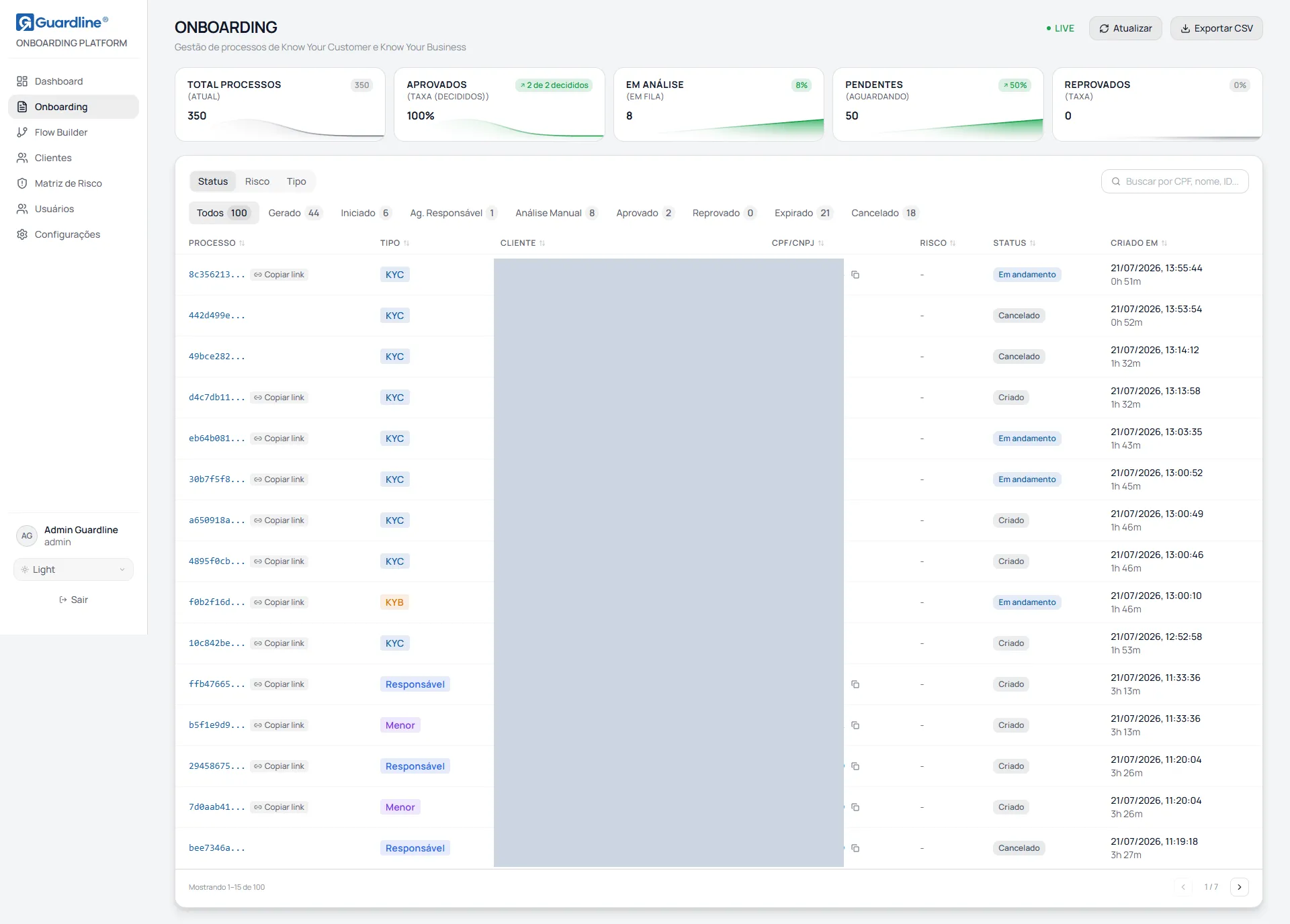
Header
Section titled “Header”The header gathers the screen title, the Live badge and two buttons.
Refresh reloads the list. The screen does not refresh on its own, so use this button after acting on a case in another tab, or to check whether new processes have arrived.
Export CSV downloads the processes currently filtered and sorted, not the whole list. The file is named onboarding-YYYY-MM-DD.csv and carries the columns ID, Type, Name, Tax ID, Risk, Score, Status, Created at, Updated at and Time. The button is unavailable when the applied filter returns no process.
The Live badge means the screen is connected to the server. It does not mean the data refreshes automatically.
Indicators
Section titled “Indicators”| Indicator | What it shows | Basis |
|---|---|---|
| Total Processes | Total volume ever created in the instance | Complete historical count |
| Approved | Approval rate | Approved divided by decided cases, that is, approved plus rejected. Cases in flight do not count |
| In Review | Manual analysis queue | Number in manual analysis and its share of the loaded processes |
| Pending | Processes waiting on the customer | Sum of the Generated and Started statuses |
| Rejected | Rejection volume and rate | The same decided-case basis used for the approval rate |
The Total Processes indicator covers the instance’s complete history, while the table below loads only the most recent batch of processes, so the screen opens quickly. That is why the number in the indicator can be larger than the total shown in the pagination. The percentages in the other indicators are computed over the loaded batch.
Filters
Section titled “Filters”
The filters are laid out in three tabs: Status, Risk and Type. Only one dimension is visible at a time, but the filters from all three tabs stay active at once and combine. Selecting Status equal to Manual Review and then Type equal to KYB yields the list of KYB processes under manual review.
The number beside each option is how many processes fall in that category. Whenever any filter is active, the Clear filters link resets the three tabs and the search in one go.
Status
Section titled “Status”The eight statuses follow the order of the process life cycle.
| Status | Meaning | Who needs to act |
|---|---|---|
| Generated | Link created, customer has not opened it yet | Customer |
| Started | Customer began filling it in | Customer |
| Awaiting Guardian | Minor onboarding waiting on the legal guardian | Legal guardian |
| Manual Review | Sent for a human decision | Analyst |
| Approved | Verification finished with approval | Case closed |
| Rejected | Verification finished with refusal or block | Case closed |
| Expired | Link lapsed before completion | Generate a new process |
| Cancelled | Process cancelled | Case closed |
In the table’s Status column the label can be more specific than the filter name, keeping the same colour. Blocked and Refused appear under the Rejected filter; Completed appears under Approved; Processing and In Progress appear under Started.
The options are Low, Medium, High and Critical. Risk only exists once the decision engine has finished analysing the case, so processes in flight show a dash in the column.
| Type | Meaning |
|---|---|
| KYC | Verification of an individual |
| KYB | Verification of a company |
| Minor | Onboarding of a minor, with legal guardian steps |
| Guardian | The legal guardian’s journey, tied to a minor’s case |
Search
Section titled “Search”The search field filters the list as you type, looking at the process number, the customer name and the document all at once. Document search ignores punctuation, so 358.260.798-43, 35826079843 and 798 all find the same process.
The search works over the processes already loaded on screen. If an older case is not found, narrow the list with the status filters before searching.
The table
Section titled “The table”Clicking anywhere on the row opens the case detail. From the keyboard, Tab to the row and press Enter. Clicking specifically on a button inside the row runs that button’s action and does not open the case.
All seven columns are sortable: one click on the heading sorts, a second click reverses the order.
| Column | Content |
|---|---|
| Process | The first eight characters of the identifier, with the full code on hover. May carry the Copy link button |
| Type | KYC, KYB, Minor or Guardian, each in its own colour |
| Customer | Customer name, with a copy button. Until the name is known, the screen shows the start of the process code |
| Tax ID | Formatted document, with a copy button. Shows a dash until the document step is filled in, and may appear masked |
| Risk | Low, Medium, High or Critical, with the 0 to 1000 score on hover. Shows a dash while there is no decision |
| Status | Current situation, in its matching colour |
| Created at | Creation date and time and, below it, how long the process has been open |
Fifteen processes are shown per page.
Visual cues
Section titled “Visual cues”The coloured bar to the left of the row flags attention: red when risk is Critical or the process has been open for over 24 hours, and amber when risk is High or the process has passed 8 hours. No bar means the case is within its window. The date follows the same colour rule.
The Rep. pending, Rep. in progress and Rep. ok tags report, on minor cases, how far the legal guardian’s journey has got. The Linked to minor tag, present on Guardian cases, is a shortcut that opens the matching minor’s case.
Copy link
Section titled “Copy link”The Copy link button appears only while the process can still be continued by the customer, that is, in the Generated, Started, Awaiting Guardian and Manual Review statuses. On approved, rejected, expired or cancelled cases the link stops being valid and the button is not shown.
Common tasks
Section titled “Common tasks”Find the case of a customer who got in touch. Type the tax ID or the name in the search field and click the row to open the case.
Work the manual review queue. On the Status tab, select Manual Review. Sort by Created at to take the oldest first, or by Risk to take the most serious first.
Send the link again to a customer who did not finish. On the Status tab, select Started or Generated, find the customer, use the Copy link button in the Process column and send the address through whichever channel you prefer.
Export the queue to a spreadsheet. Apply the filters you want, check the total at the foot of the table and click Export CSV. Only the filtered processes go into the file.
Check whether a minor is waiting on the guardian. On the Type tab, select Minor and look for the Rep. pending tag in the Customer column.
Frequently asked questions
Section titled “Frequently asked questions”Why is the Risk column empty? Because the process has not been decided by the engine yet. Risk and score only exist on decided cases.
Why does the row show a code instead of the customer name? Because the customer has not been through the identification step yet. Until then, the screen uses the start of the process code as a provisional identifier.
Does the screen refresh on its own? No. The Live badge means the connection to the server is up, not automatic refresh. Use the Refresh button.
Why do two processes appear for the same customer? Each attempt creates its own process, so it is common for a customer to have one cancelled or expired process and another in flight. It also happens in minor onboarding, where the minor and the guardian are two linked processes.
A minor’s process has been in Awaiting Guardian for days. What now? The minor finished their part and the case is waiting on the legal guardian. Open the case and check the guardian block, which reports whether the notification was delivered and lets you send the link again.
Does the risk band on this list match the Dashboard? Not always. The two screens use different score cuts to name the bands. When comparing, use the numeric score, available on hover over the Risk column. The Risk Matrix chapter details the cuts.
Version 18, updated on