

Flow Builder
What it is for
Section titled “What it is for”The flow is the sequence of screens the end customer goes through: welcome, terms, document, biometrics, completion. The Flow Builder is where you define which of those screens make up the journey, in what order, with which wording and with which visual identity.
It is also where you create a one-off onboarding process for a specific customer.
Changes made on this screen affect every customer who starts the journey after you save.
The screen’s two views
Section titled “The screen’s two views”The screen has two views. The flow list is the opening view. The editor is reached by clicking a flow’s name, or through the Open editor option in the row menu.
The panel remembers where you left off: on returning to the Flow Builder, the editor for the last flow you were editing reopens. The back button in the top bar takes you to the list.
The flow list
Section titled “The flow list”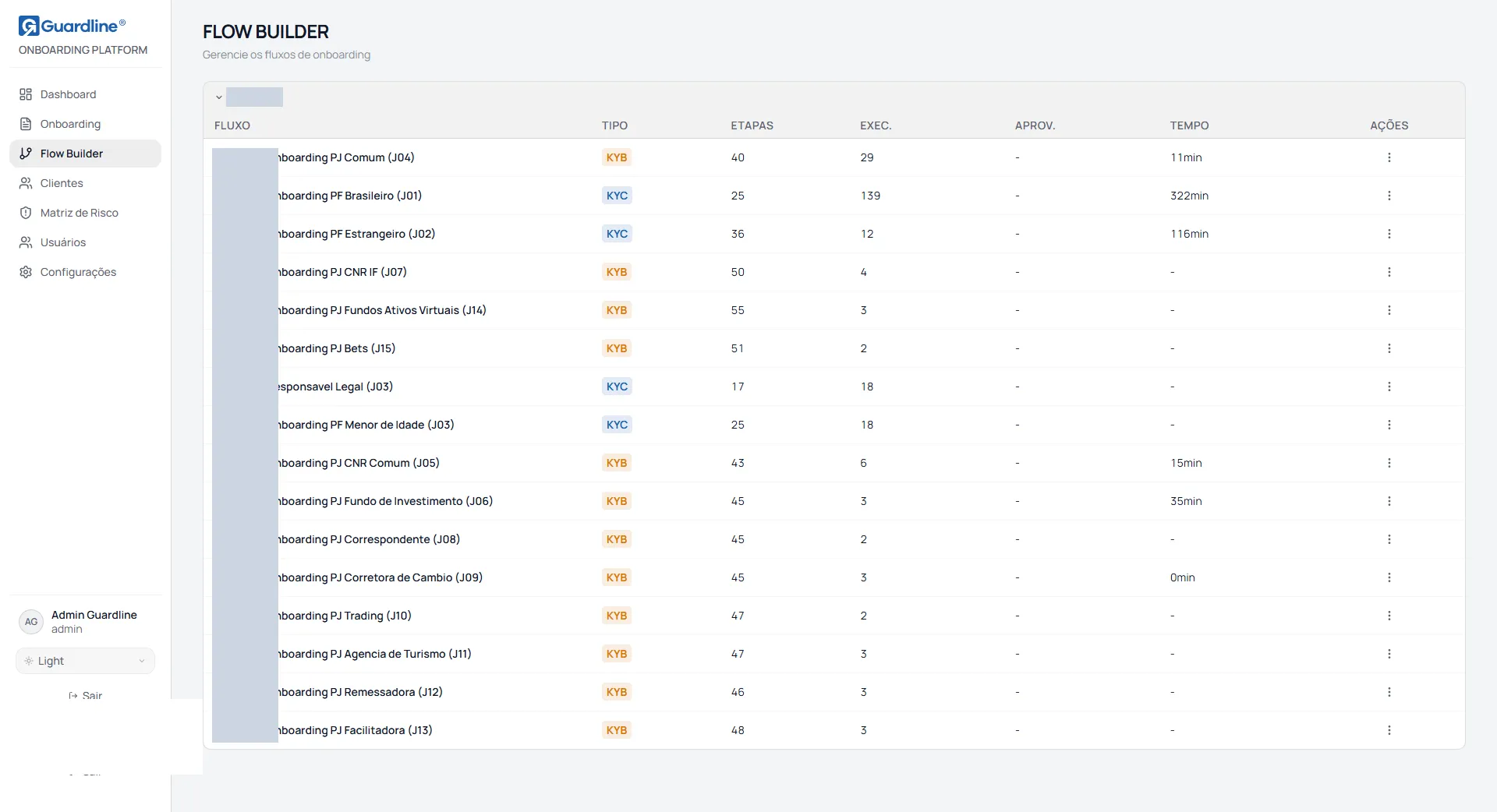
Flows are grouped by client, and each group’s heading collapses or expands its table.
| Column | Content |
|---|---|
| Flow | Flow name, which opens the editor when clicked |
| Type | KYC, KYB, Minor or Guardian |
| Steps | Number of steps in the flow |
| Runs | Number of processes already run on this flow |
| Appr. | Approval rate of the flow |
| Time | Average duration in minutes |
Columns with no data available show a dash. Deactivated flows appear dimmed and carry the Inactive tag.
Available actions
Section titled “Available actions”Each row’s menu gathers the flow’s actions.
| Action | Effect |
|---|---|
| Open editor | Takes you to editing the steps |
| Rename | Lets you edit the name in the row itself |
| Duplicate | Creates a copy and opens its editor |
| Activate or Deactivate | Puts the flow into operation or takes it out |
| Delete | Removes the flow permanently |
The Rename action records the new name only in the browser in use. Other users, and you yourself on another computer, will keep seeing the original name. It is therefore a personal nickname.
The Duplicate, Activate, Deactivate and Delete actions are available for flows created on the server. Internal flows, which come from fixed configuration, offer only the first two options.
Flow life cycle
Section titled “Flow life cycle”Activation puts the flow into operation immediately, without asking for confirmation.
Deactivation asks for confirmation and states that the flow will be moved to archived, dropping out of the default list, and that it can be reactivated at any time.
Duplication creates the copy without asking for confirmation and opens its editor. It is the safe way to try changes out.
Deletion asks for confirmation and is final. When the flow has processes in flight, deletion is refused, and the guidance in that case is to deactivate rather than delete.
The flow editor
Section titled “The flow editor”The top bar carries the return to the list, the flow name, the layout mode selector and the process creation button.
The layout mode defines how the journey is presented to the customer: Form leads with one question per screen, step by step, while Chat presents the journey as a conversation.
Navigating and ordering the steps
Section titled “Navigating and ordering the steps”Steps are shown as cards grouped by subject, among them start, terms, identity, address, document, biometrics, company, partners, declarations and completion. Each group carries a progress bar with the share of enabled steps and a marker for unsaved changes.
Reordering is done by dragging the step’s card to its new position.
The set of steps is defined when the flow is created. In the editor, what you control is whether each step is enabled and the order between them. For a journey with steps other than the existing ones, duplicate a flow that already carries them.
The flow is linear. The configuration fields inside a step control what appears on that screen, not branches in the path.
Editing a step
Section titled “Editing a step”When you select a step’s card, the panel shows the editing on the left, a phone preview in the centre and the styling on the right.
At the top, the Enabled and Disabled selector defines whether the step is part of the journey, and the counter reports the step’s position in the total.
| Section | What it controls |
|---|---|
| Layout | Header and presence of the back button |
| Screen text | Title, subtitle, body text and hint text |
| Screen elements | List items, checkboxes, instructions and step-specific options |
| Form fields | Label, example text and whether each field is required |
| Action | Text of the primary and the secondary button |
Required fields get a visual marker when empty, but that marker does not prevent saving. Check the preview before saving, since a step with no title is published with no title.
Visual identity
Section titled “Visual identity”The styling panel controls the logo, with file upload and scale adjustment, the journey colours and the button colours.
The styling applies to the whole flow, not to the selected step. Changing a colour while editing a step changes the entire journey. The only per-step settings are the layout ones.
Saving
Section titled “Saving”The Save button appears when there are changes, together with the indication of pending or saved changes.
When part of the changes is not synchronised with the server, the message identifies which parts failed, and the guidance is to save again.
Leaving the editor with pending changes raises no warning. Save before returning to the list or switching screens.
Recommended routine for changing a flow
Section titled “Recommended routine for changing a flow”The editor writes straight into the open flow, with no draft and no published preview. That is why the safe routine is to work on a copy.
- In the list, use the Duplicate action on the flow you want.
- The copy’s editor opens automatically.
- Make the changes and save.
- Test the copy by creating a process and going through the journey.
- Once the result is approved, activate the copy and deactivate the previous flow.
- Otherwise, delete the copy. The original flow is left untouched.
Creating a one-off process
Section titled “Creating a one-off process”The New process button, in the editor’s top bar, generates an onboarding link for a specific person, without depending on an automated channel.
On ordinary flows, the fields are full name, tax ID, email and mobile. On minor flows, the form offers two blocks: the minor’s data, with name, tax ID and date of birth required, and the legal representative’s data, with name, tax ID, mobile and relationship required.
Set the delivery channel, either email with SMS or SMS only, and confirm. The link is then available to copy. On minor flows two processes are created, one for the minor and one for the guardian.
Processes created here appear on the Onboarding screen with the Generated status.
The window opens on New registration, which is the behaviour described above. The Existing customer option, next to it, opens the journey over a record that already exists: search by name or document, with at least three characters, pick the record from the list and confirm. In that mode there is no data form, because the pre-fill comes from the record itself. The option is not shown on minor or representative flows, whose subject is declared in the linkage block.
The search accepts the document with or without punctuation. If the flow blocks a new registration for an existing customer and the document typed under New registration belongs to someone whose registration already ended, the window says so and switches to the Existing customer mode on its own, carrying what was typed. Nothing is created without you picking the record and confirming.
Frequently asked questions
Section titled “Frequently asked questions”I changed a flow. Do processes in flight change? No. The change applies to journeys started after saving.
Does deactivating delete the flow? No. It is archived, drops out of the default list and can be reactivated. Deletion is the final one.
I renamed a flow and another user still sees the previous name. That is the expected behaviour, since the renamed name is recorded only in your browser.
Can I preview the journey before publishing? The phone preview in the editor shows the selected step. To go through the whole journey, create a process with your own data and open the generated link.
Version 18, updated on