

Settings screen
What it is for
Section titled “What it is for”The Settings screen brings together your account data, access security and the instance’s integrations. Which tabs are available depends on the user’s profile.
| Tab | Purpose | Available to |
|---|---|---|
| Account | Data of the signed-in user | Every profile |
| Notifications | Alert preferences | Every profile |
| Security | Password change and session | Every profile |
| API Tokens | Keys for programmatic integration | Every profile |
| Webhooks | Automatic delivery of events to another system | Administrator |
| Audit | Record of administrative actions | Administrator |
| System | Appearance and version information | Every profile |
Account tab
Section titled “Account tab”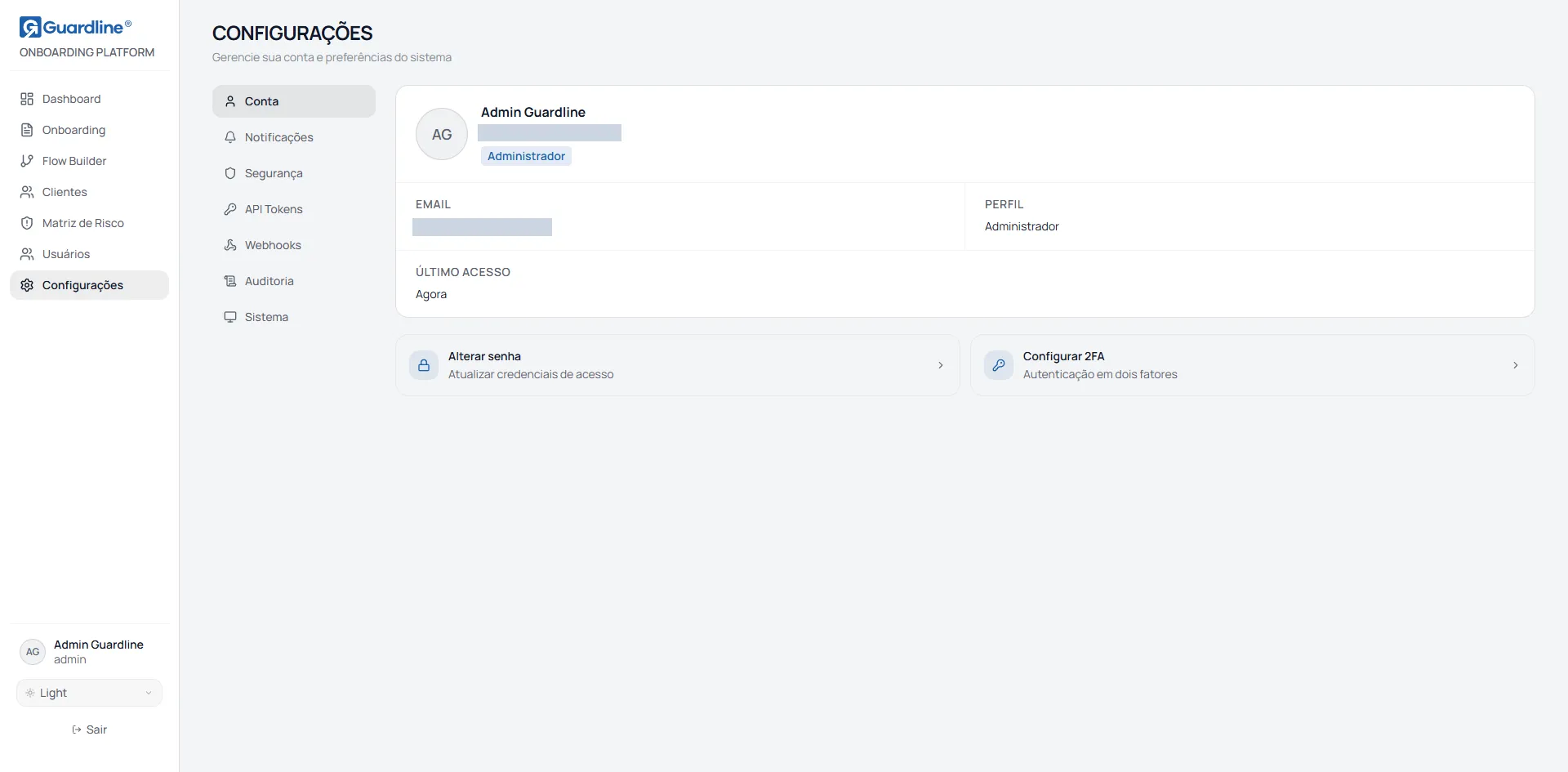
Shows the name, email and profile of the signed-in user, with no editing. Changing name or profile is done by an administrator on the Users screen.
The password change shortcuts lead to the Security tab.
The last access field shows fixed text in this version, not the real record of the previous sign-in. To find out when a given action was taken in the system, use the Audit tab.
Notifications tab
Section titled “Notifications tab”Shows five alert preferences: email notifications, browser notifications, new processes, status change and escalations.
These preferences are not saved in the current version. Changing a switch has no effect and, on reloading the page, the setting returns to the default. The screen is ready for a feature that has not been enabled yet, so do not rely on it to be told about events.
Security tab
Section titled “Security tab”To change the password, use the Change button on the matching row, enter the current password, the new password and the confirmation, and finish.
The new password has to meet five requirements: at least eight characters, at least one uppercase letter, at least one lowercase letter, at least one number and at least one special character. When a password is refused, the message states which requirement was not met.
The field’s helper text mentions only the eight-character minimum, but all five requirements above are enforced.
Once the change completes, the form closes and the operation is confirmed by a notice.
Two-factor authentication and session timeout
Section titled “Two-factor authentication and session timeout”The screen shows a two-factor authentication switch and a session inactivity timeout field.
Neither has any effect in the current version. The values are not saved and there is no second-factor setup flow. Treat that part of the screen as unavailable: turning the switch on adds no protection to the account.
API Tokens tab
Section titled “API Tokens tab”Tokens let the institution’s systems create onboarding processes programmatically, without going through the panel.
To generate a token, enter a name that identifies its use, select the environment, either Live for production or Test for testing, and finish.
The full token is shown once, immediately after creation. Copy and store it somewhere safe at that moment. If you do not copy it, it cannot be recovered: all that is left is to revoke the token and generate another.
The token’s permissions are predefined and cannot be adjusted from the screen.
In the list of active tokens, each entry shows the name, the start of the code, the environment and the date of last use. Revocation is final: any system using the token stops working immediately.
Webhooks tab
Section titled “Webhooks tab”Webhooks automatically notify another system when an event happens, among them onboarding completed, approved, rejected or sent to review.
To register one, use the New Webhook button, enter the URL that will receive the events, select the group of flows that triggers the delivery and, optionally, a description. URL and group are required.
Each registered webhook offers three actions: enable or disable, view deliveries and remove.
The delivery view shows the history with event, status, response code, response time, attempt number and date. It is the diagnostic screen for when the receiving system reports not having got a given event.
Audit tab
Section titled “Audit tab”Records the administrative actions taken in the instance, with date, action, entity and author. It is where you find out who changed a given setting and when.
The search accepts both the action code and the description in Portuguese. Thirty records are shown per page.
With the search active, paging is unavailable, since the search only covers the page being shown. To search the whole history, clear the search, page to the period you want and then search.
System tab
Section titled “System tab”Lets you select the interface theme between Dark and Light. The choice is individual and is stored in the user’s browser.
The information section shows the version of the panel in use. The environment field displays fixed text in this version and does not reflect the real environment the panel is running in.
Common tasks
Section titled “Common tasks”Integrate onboarding with the institution’s system. API Tokens tab, generating a production token, copying it at creation time and handing it to the development team.
Get automatic notices of approval and rejection. Webhooks tab, registering the receiving system’s URL and selecting the group of flows.
Find out who changed the Risk Matrix. Audit tab, locating the matching action.
Change your own password. Security tab, Change button on the password row.
Frequently asked questions
Section titled “Frequently asked questions”I lost the token I generated. How do I recover it? You cannot. Revoke the lost token and generate a new one.
I turned notifications on and get nothing. The notification preferences are not in operation in this version: nothing is saved and no alert is sent.
The two-factor switch is on. Is the account protected? No. The switch has no effect in the current version.
The Webhooks tab does not appear for me. The Webhooks and Audit tabs belong to the Administrator profile only.
The Audit search does not find an old record. The search only covers the page being shown. Page to the period you want before searching.
Version 18, updated on