

Dashboard screen
What it is for
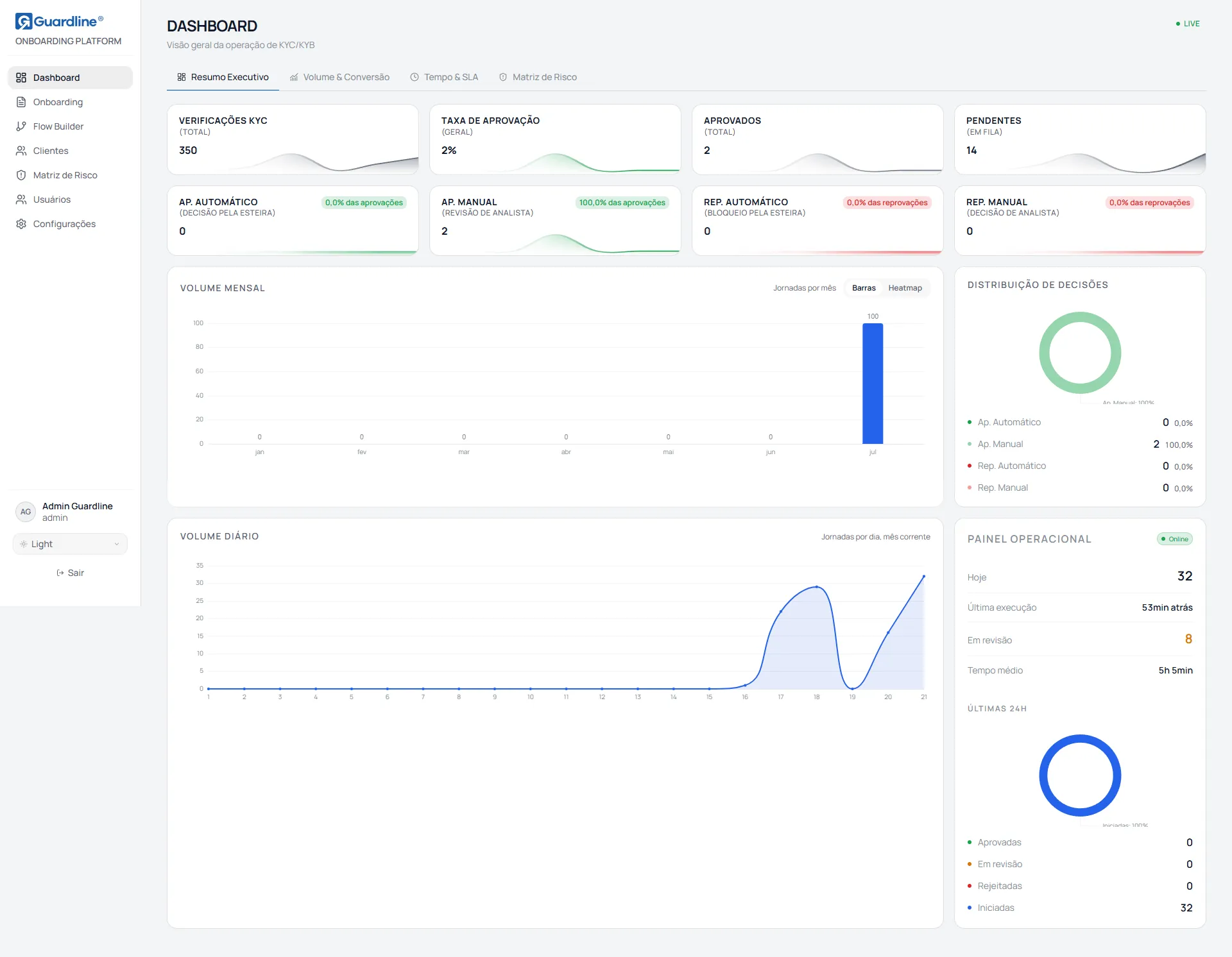
Section titled “What it is for”The Dashboard gives the management view of the operation: volume, approval rate, processing time and risk distribution. It is the panel’s opening screen.
It is a read-only screen. Nothing on it changes a case: there are no buttons that approve, reject, cancel or resend anything. To act on a case, use the Onboarding screen.
Loading the data
Section titled “Loading the data”The data is fetched once, at the moment the screen opens. There is no automatic refresh: to see new numbers, reload the page in the browser.
When the fetch fails, the screen reports the cause and offers a Try again button.
| Message | Meaning |
|---|---|
| No connection to the server | The network is down or the server is unreachable |
| The server took too long to answer | The server is slow or overloaded |
| Error loading dashboard data | Generic failure. If it persists, contact support |
Tabs and filters
Section titled “Tabs and filters”The screen is split into four tabs: Executive Summary, Volume and Conversion, Time and SLA, and Risk Matrix.
Three filters are available: status, risk and flow type. With any filter active, a counter in the form 12 of 340 reports how many processes remain, and the Clear filters button restores the full view.
Two rules deserve attention. The filters do not apply to the Executive Summary tab, which always reports the whole operation, so that it serves as the official number. Anyone who needs to slice the data should use the other three tabs. Beyond that, the risk filter drops undecided cases: a process still in flight has no computed risk and therefore appears in no band, not even in Low.
Executive Summary tab
Section titled “Executive Summary tab”Headline indicators
Section titled “Headline indicators”| Indicator | What it measures |
|---|---|
| KYC Verifications | Total processes created in the instance since the operation began |
| Approval Rate | Percentage approved out of the loaded processes |
| Approved | Number of processes approved or completed |
| Pending | Processes awaiting some action: queued, in flight, processing or in manual review |
The KYC Verifications indicator uses the complete historical total, while the approval rate is computed over the batch of processes the screen loaded, which is capped. As soon as the instance holds more processes than fit in that batch, the two bases start to diverge. Read the rate as a trend, not as an accounting figure.
Automatic and manual decisions
Section titled “Automatic and manual decisions”Four indicators show how much of the operation the pipeline settles by itself and how much is left to the analyst: Auto Appr., Manual Appr., Auto Rej. and Manual Rej. Each shows its percentage share beneath the number.
This is the most useful reading on the screen for sizing a team: when the manual share grows, the analysis queue grows with it.
Charts
Section titled “Charts”The volume card switches between two modes. In Bars it shows Monthly Volume, one bar per month of the current year. In Heatmap it shows Annual Volume, one square per day, darker as volume rises, useful for spotting seasonality and quiet periods.
Decision Distribution shows the four decision categories as a doughnut, with count and percentage of the decided total. Daily Volume shows one bar per day of the current month.
Operational Panel
Section titled “Operational Panel”The card on the right concentrates the day-to-day reading.
| Row | What it shows |
|---|---|
| Online or Offline | Whether the panel is connected to the server right now |
| Today | Processes created since midnight |
| Last run | How long ago the most recent process came in |
| In review | Size of the manual analysis queue, highlighted when above zero |
| Average time | Average time between the start and the completion of processes |
The Online and Offline indicator on this card is the real information about the connection to the server.
Last 24h
Section titled “Last 24h”A doughnut with the categories Approved, In review, Rejected and Started. The Started slice gathers everything that was not approved, rejected or put in review, including processes in flight and ones the customer has not opened yet. It should not be read as “customers who began filling it in”.
Volume and Conversion tab
Section titled “Volume and Conversion tab”This tab answers how many processes come in, how many reach the end and where customers drop out.
| Indicator | What it measures |
|---|---|
| Total Volume | Total processes, honouring the active filters |
| Completion Rate | Percentage of processes that reached the end |
| Global Drop-off | The complement of the completion rate, that is, abandonment |
| Average Time | Average processing time |
The Conversion Funnel shows five stages, top to bottom: Started gathers every process; In Progress, those that left the initial state, that is, whose link was opened; Analysed, those that reached the analysis stage; Decided, those that got a verdict; and Approved, the approved ones.
The largest fall between two consecutive bars points to what deserves investigation. A steep fall between Started and In Progress usually means the link was never opened, not a usability problem in the journey.
Rounding out the tab are the Volume Trend, Distribution by Channel and Volume by Day of Week charts.
Time and SLA tab
Section titled “Time and SLA tab”| Indicator | What it measures |
|---|---|
| Average Time | Mean processing time |
| P95 | The time within which 95% of processes completed |
| Completed | Number of processes with a measured time, that is, the basis of the calculation |
| In Queue | Average waiting time of the processes still pending |
The P95 indicator measures the tail of the distribution: when the average time is two minutes and P95 is four hours, there is a group of stuck processes the average does not reveal.
Processing Time Distribution groups processes into bands, from under a minute to over an hour. Bands with no processes are left out of the chart.
Risk Matrix tab
Section titled “Risk Matrix tab”This tab covers only processes with a final decision. Cases in flight or under manual review stay out of every calculation, since they have no risk score yet.
| Indicator | What it measures |
|---|---|
| % Low Risk | Share of processes scoring below 300 |
| High and Critical | Share scoring 600 or above |
| Total Analysed | Number of processes that entered the calculation |
| Average Score | Mean score of the decided base |
The four percentages may not add up to 100%, because the numerator counts only decided processes while the denominator includes them all. With a large analysis queue the gap becomes visible. For a precise reading of the composition, use the Risk Distribution chart, which works only with the decided base.
The risk bands on this tab use different cuts from those applied on the Onboarding screen and in the case detail. On this tab, Low runs to 299 and Critical starts at 800; on the other screens, Low runs to 249 and Critical starts at 750. When cross-reading between screens, compare by the numeric score, which is identical everywhere.
The Risk and Decision table crosses the risk band with the outcome, showing, for each band, the percentage approved, in review and rejected. It is the reading that validates the calibration of the decision ruler: if the Critical band shows high approval, or the Low band shows a lot of review, the score thresholds deserve a look.
Common tasks
Section titled “Common tasks”Find out the size of today’s queue. Executive Summary tab, Operational Panel card, In review row.
Discover where customers drop out. Volume and Conversion tab, Conversion Funnel chart, looking for the largest fall between consecutive bars.
Check the calibration of the risk ruler. Risk Matrix tab, Risk and Decision table.
Compare KYB and KYC. Use the flow type filter, switching between Company and Individual, and compare the same tabs, remembering that the Executive Summary takes no filters.
Frequently asked questions
Section titled “Frequently asked questions”The numbers do not change. Is the screen stuck? No. The data is loaded once. Reload the page to refresh it.
Why do the numbers not match the Onboarding screen? The two screens load different volumes of data and apply different cuts. For an exact operational count, use the Onboarding screen with a filter and the foot of the table. The Dashboard serves trend reading.
A chart shows “No data”. Is that an error? No. It means there are not yet any processes that satisfy that calculation. Time charts, for example, depend on completed processes with a recorded start and end.
Version 18, updated on