

Users screen
What it is for
Section titled “What it is for”The Users screen manages who has access to the admin panel: creating users, setting the profile, resetting passwords and removing access.
Do not confuse it with the Customers screen: that one holds the people the platform verifies, and this one holds the staff who operate the panel.
Layout of the screen
Section titled “Layout of the screen”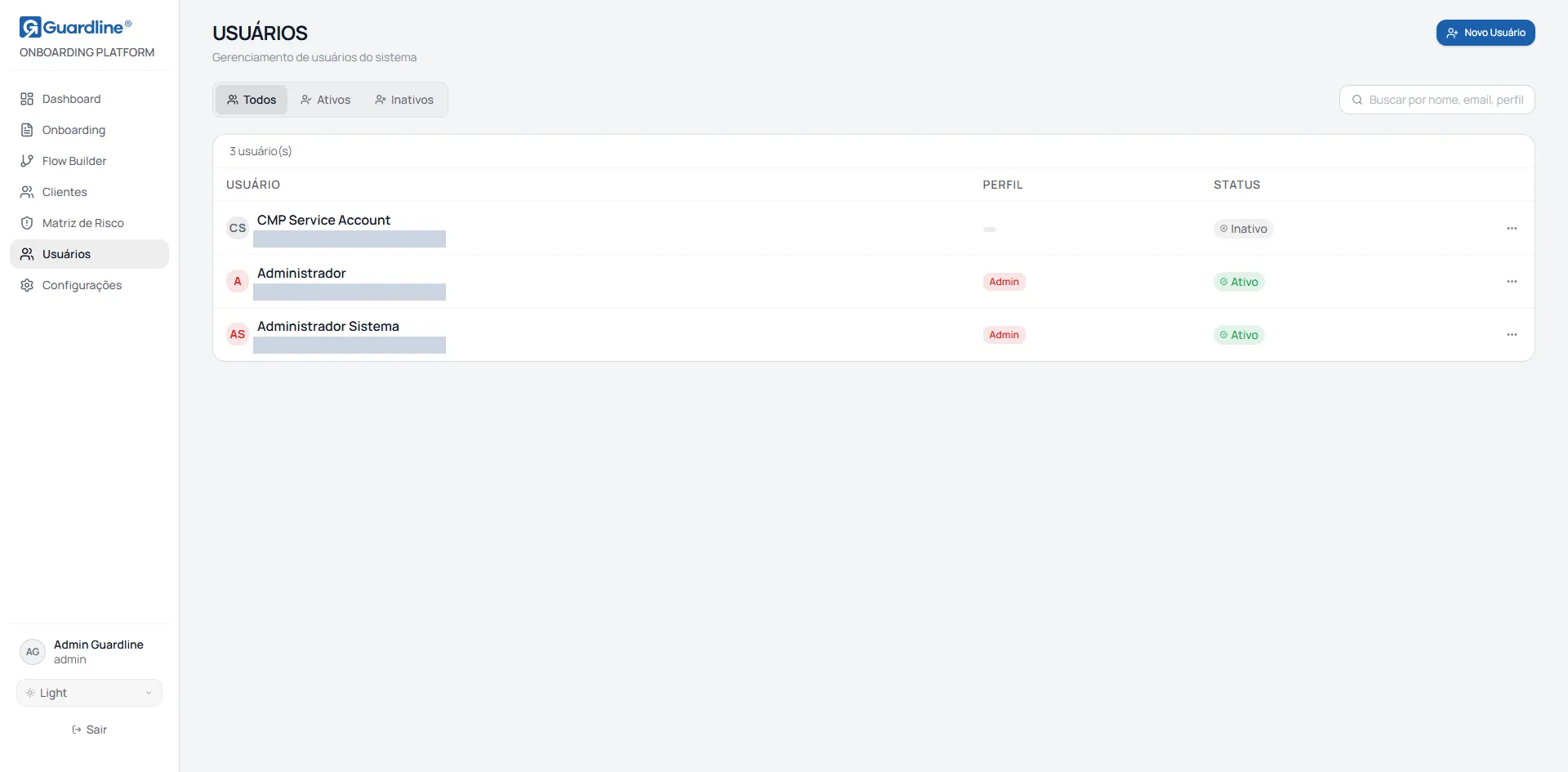
The header carries the title and the New User button. Below sit the All, Active and Inactive filter tabs, the search field and the user counter.
The search looks at name, email, area and profile. Both the search and switching tabs return the listing to the first page. Fifteen users are shown per page.
The table carries the columns User, with name and email, Profile and Status.
Access profiles
Section titled “Access profiles”| Profile | Reach |
|---|---|
| Administrator | Every screen, including Flow Builder, Risk Matrix, Users and Settings |
| Supervisor | The same reach as the Administrator. The profile is now declared explicitly; before, it reached the same screens through a default that also let any unknown profile through |
| Analyst | Dashboard, Onboarding with case detail, Reports and Customers. On the Customers screen the Analyst reads, but neither creates a journey nor removes a record |
| Viewer | Dashboard and Onboarding, read-only |
The Administrator profile is shown abbreviated in the table and in full in the selection lists. It is the same profile.
The Status column shows Active or Inactive and is informational: the screen offers no action to activate or deactivate a user.
Creating a user
Section titled “Creating a user”Click New User and fill in the form.
| Field | Required | Note |
|---|---|---|
| Name | Yes | Full name |
| Yes | Will be used as the sign-in identifier | |
| Profile | No | Starts as Analyst |
| Area | No | Free text, for example Compliance or Registration |
The create button stays unavailable while name or email are empty. Once creation completes, the listing reloads.
The form has no password field, since access runs through corporate authentication. If the new user needs an initial password, use the password reset after creating them.
Editing a user
Section titled “Editing a user”In the row’s action menu, choose Edit. Name and profile can be changed.
The email cannot be changed. If it is wrong, create the user again with the correct address and remove the earlier one.
Resetting a password
Section titled “Resetting a password”In the action menu, choose Reset password. The system generates a random password, applies it to the user and copies it to the clipboard, confirming the operation with a notice.
The action is immediate and asks for no confirmation. From that moment, the previous password stops working.
Pass the new password on through a secure channel and tell the person to change it on first sign-in. If the automatic copy fails, the notice shows the password as text, and it has to be copied before the notice disappears.
Removing a user
Section titled “Removing a user”In the action menu, choose Delete.
Deletion runs immediately, with no confirmation dialog, and cannot be undone. Check the name on the row before opening the menu.
Since the screen offers no deactivate option, removal is the only way to take someone’s access away. For temporary absences, consider changing the person’s profile to Viewer and restoring it later.
When the server is unavailable
Section titled “When the server is unavailable”If the panel loses its connection to the server, the edit and delete actions change only what is shown on screen, without recording the change. The user appears to have been removed but still has access.
Reload the page after any sensitive action to confirm it went through. If the row comes back, the operation was not recorded.
Common tasks
Section titled “Common tasks”Grant access to a new analyst. Use New User, fill in name and email, select the Analyst profile and finish.
Promote someone to administrator. Action menu, Edit option, changing the profile to Administrator.
Take away the access of someone who left the institution. Action menu, Delete option, checking the name first, since there is no confirmation.
Help someone who forgot their password. Action menu, Reset password option, passing the password on through a secure channel.
Frequently asked questions
Section titled “Frequently asked questions”I deleted the wrong user. How do I get them back? You cannot. Create the user again with the same email and profile.
How do I block someone temporarily? The screen does not offer that. The alternatives are lowering the profile to Viewer, or deleting and recreating later.
I created a user and they cannot sign in. Check that the email matches the corporate authentication exactly. Since the email is not editable, a typing error means the user has to be recreated.
Version 18, updated on